
Tips and troubleshooting
Matching the card
You are matching a physical object to a screen, and screens lie in predictable ways. A few things I've found make the match better:
- Judge under the light you will display the print in. A print matched under warm kitchen light will not match under daylight, and neither is wrong.
- Compare one patch at a time. Your eye is very good at relative judgements and bad at absolute ones. Put the card next to the patch on screen rather than glancing between them.
- Do not chase the last few percent. Close is the whole job. The numbers get better with each reading you add.
Match my screen moves the colours on your display without touching the measurements. Use it if your monitor is obviously warm or cold; it changes nothing about what gets printed.
Reading with a photo? Most bad readings come from the photo. Retake it in even daylight with no glare, check that every pink box sits inside its square, and take care with the squares you match, since everything else is read from them. You can always fine tune by eye before you save.
Choosing which rolls to load
Polychrome ranks palettes for your picture and shows a prediction for each. The ranking is doing real work: the same image on different rolls is a genuinely different print.
Two things that surprise people:
The darkest roll becomes the base. In relief mode Polychrome prints a slab of your darkest filament, then builds colour on top of it. Exposed base is true black, and that is where the depth in the picture comes from.
White does most of the work. White thickness under a colour is what makes it light or dark. A palette without a good white has less range than its colours suggest.
The first ranking takes longer. The first time you rank with new settings, Polychrome builds colour tables, and the box above the palettes says so and shows how far along it is. The next ranking with the same settings is much quicker.
When the print does not match the preview
In rough order of how often it is the answer:
The rolls are not calibrated, or were calibrated with a different spool of the same name. Filament varies between batches.
The light is different from the light you judged the card in.
The filament is not what the label says. Translucency varies more between manufacturers than colour does, and it is translucency that Polychrome depends on.
The layer height changed. The preview assumes the height the plate was built for.
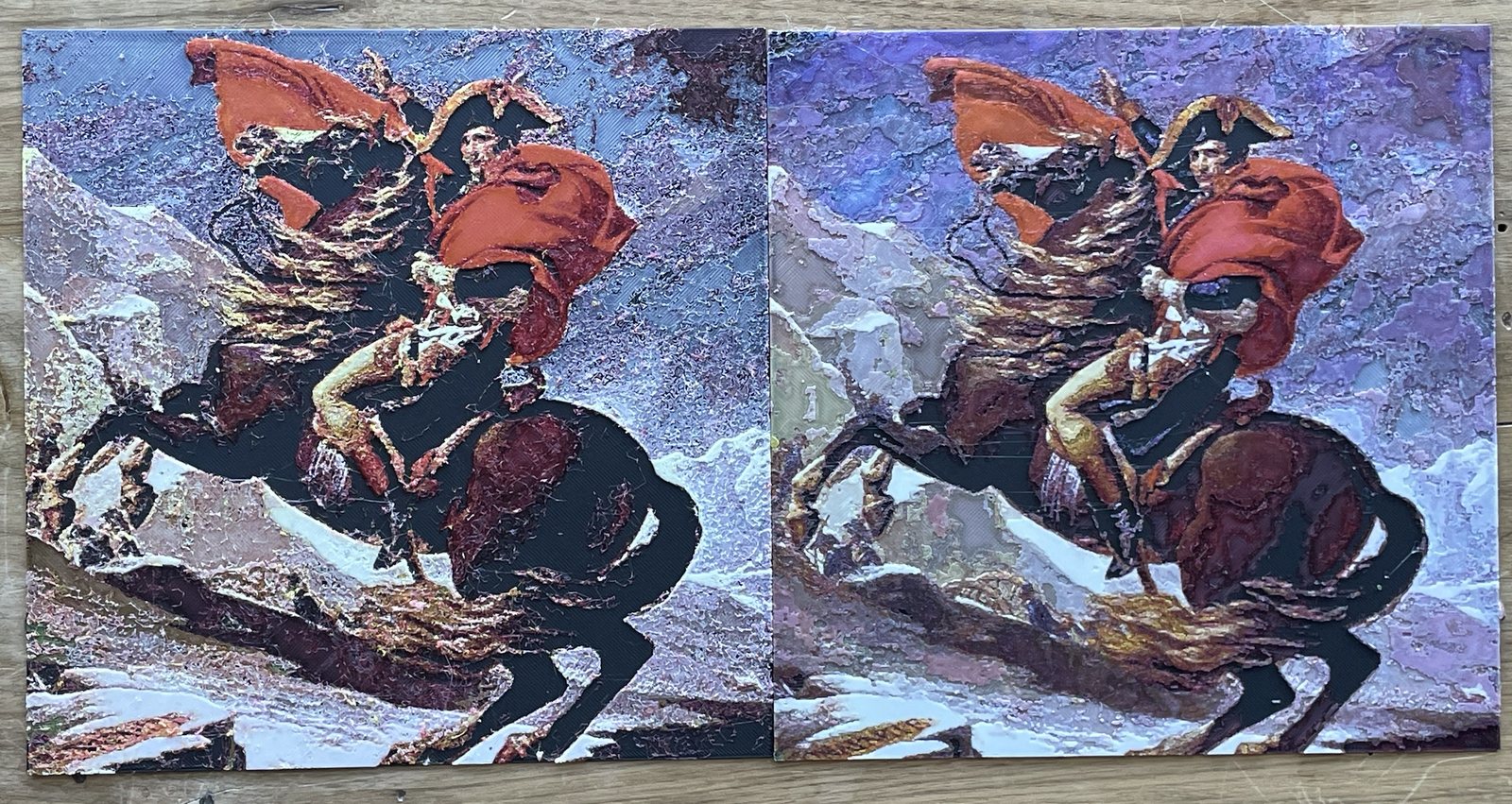
The filament is wet. Filament takes in water from the air, and wet filament strings, bubbles and leaves a fuzzy, speckled surface. Here are two prints of the same plate: wet filament on the left, dried filament on the right. Dry your rolls before a big print.
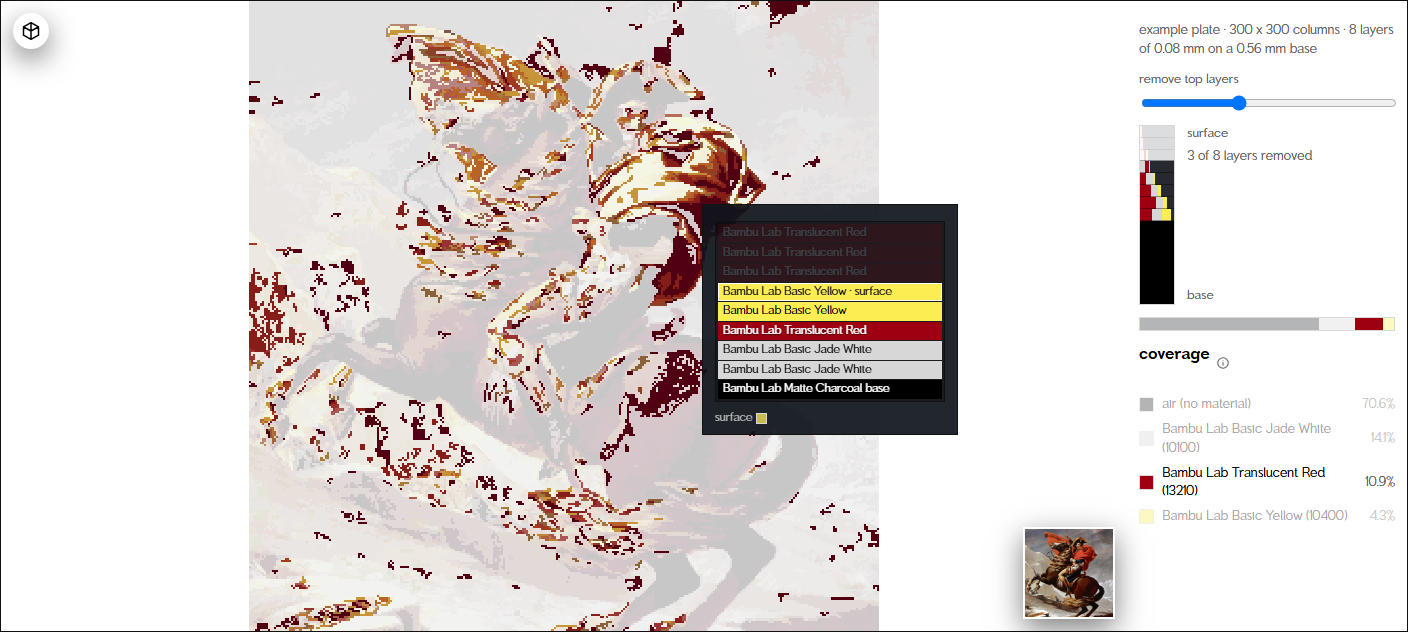
Before slicing, open the plate and use remove top layers to take layers off the top, in the 2D view or the 3D view. Hover a spot to see its stack of layers, and click a filament in the coverage list to see where it is. It shows what the engine expects, so a plate that is going to come out wrong usually looks wrong there first.
If the app itself misbehaves
Hold Shift while you open Polychrome. It asks whether to reset its settings, and your plates, filaments, calibration and licence are all kept.
If the build button says Connect to build, Polychrome hasn't been able to reach polychrome3d.com to finish setting up your licence. Connect to the internet and open Licence: it checks by itself, or press Check now.
If it says Activate to build or start trial, this computer has no licence and no trial running. Open Licence to start the trial or activate your key. The trial needs an internet connection to build or download plates. A licence works offline.
If something is still wrong, open Licence and use the logs link in that window, then send that file to [email protected] with what you saw and which version you are running.
Not installed yet?
Windows and macOS are on the download page, with the install steps and what your computer will say the first time.