
Printing your plate
When you build a plate, Polychrome takes you to its page under Plates. I put everything you need to print it in the print sheet under the preview.
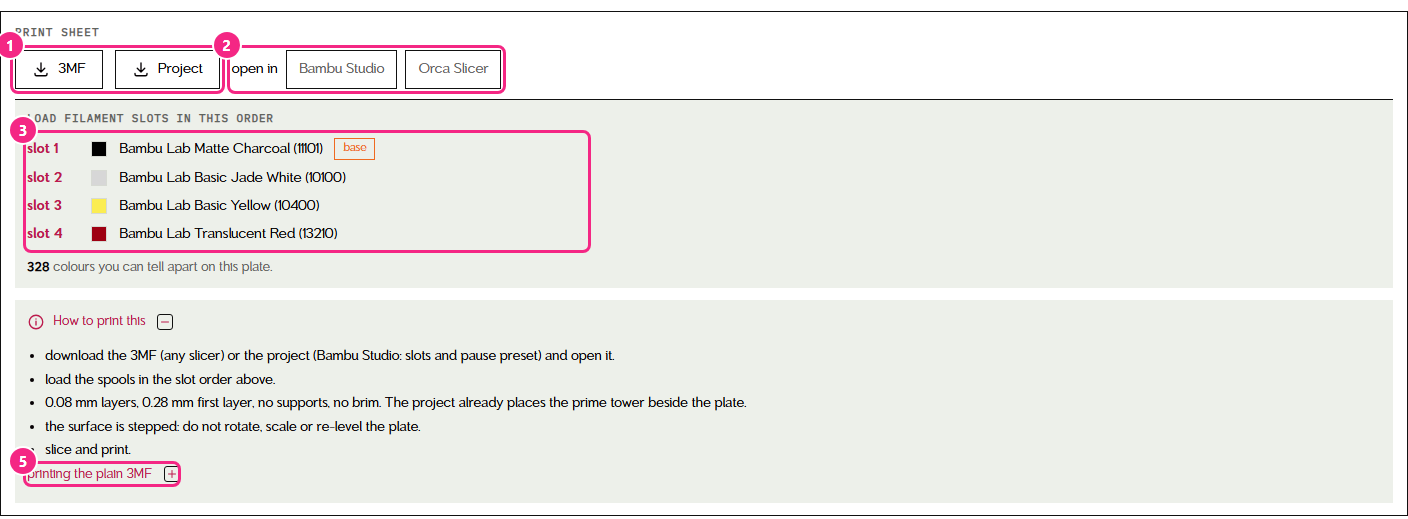
1. Download the file. The project is for Bambu Studio and has everything set up for you, including the slots and the pause. The 3MF works in any slicer, but you set it up yourself.
2. Or open it straight away in Bambu Studio or Orca Slicer.
3. Load your filament slots in the order shown. Slot 1 is your base, the darkest filament. If you used switch out black, the list ends with the spool you swap in at the pause (white), the slot it goes in, and when. Under the list is how many colours you can tell apart on this plate.
4. The swap. If you used switch out black, the print pauses once, right after the base layers. The print sheet tells you exactly when (here it's layer 3). When it pauses, pull the black out of slot 1, load white in its place, and resume. That's the only time you need to touch the printer.
5. Using the plain 3MF? Open printing the plain 3MF for the settings, and the exact layer to add the pause on in your slicer. It's a different layer number than in the project, because other slicers print the base as thinner layers.
Why it changes colour right before the pause
If you've never tried to swap filaments on a pause, this one might surprise you. Normally Bambu's software won't release the spool while the printer is paused. So right before the pause, the print switches to one of your other colours for a moment, which frees up the black roll so you can pull it out. That's the little spot of colour in the last base layer. It ends up hidden under the picture, so don't worry about it.
A few more things
- Print with 0.08 mm layers and a 0.28 mm first layer, with no supports and no brim. The project file already has this set.
- The project also places a prime tower beside the plate, long and thin so it fits next to a full size plate. It's a normal prime tower in Bambu Studio: you can drag it, or change its Width in the prime tower settings.
- Don't rotate, scale or re-level the plate in your slicer. The surface is stepped on purpose.
- Want to double check your filaments before a big print? Calibrate these filaments at the top of the plate page takes you to the Calibrate page with that plate's filaments.
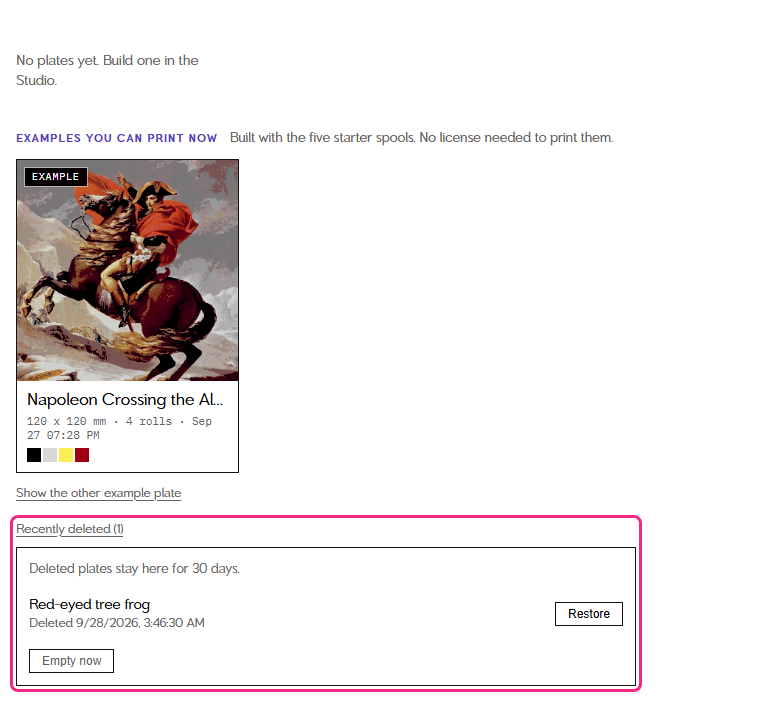
- Deleted a plate by mistake? It goes to Recently deleted at the bottom of the Plates page, and you can restore it for 30 days.
Example plates
The Plates page has two example plates, Napoleon and a red-eyed tree frog, under Examples you can print now. They were built with the starter spools, and you can download them or send them to your slicer and print them without a licence. If your library is missing a spool one of them needs, its page tells you which.
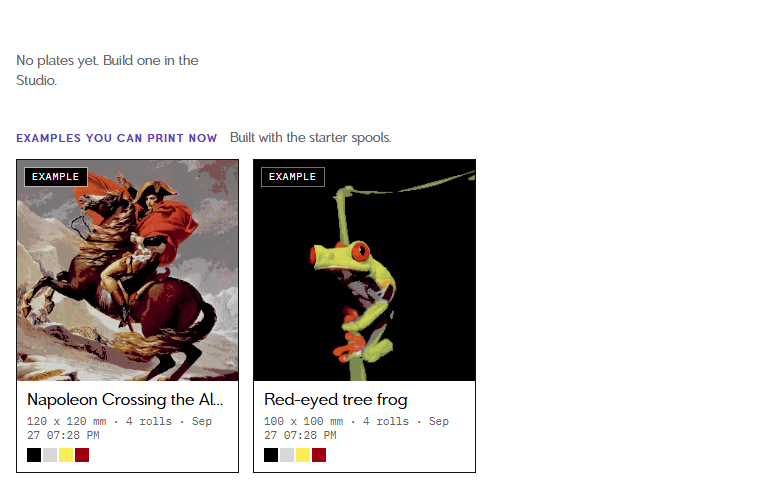
You can delete them like any plate, and Show the example plates at the bottom of the Plates page brings them back.