
Adjusting the settings
I did my best to remove as many controls as possible to make this app really simple to use. Everything here is on the right side of the Studio.
At the top is Settings, which is all most pictures need. Under it, More options, Filaments and Image start folded. Click one to open it.
Settings
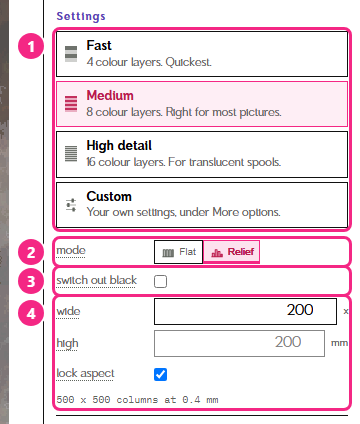
1. Presets. First there are four presets, a bit like the graphics settings in a game. Fast uses 4 colour layers and is the quickest. Medium uses 8 and is right for most pictures. High detail uses 16 colour layers and 4 colour changes per column: it mixes translucent spools better but takes longer to prepare, and it's marked Recommended when your palette has two or more translucent spools. Custom is whatever you set yourself under More options. A preset just sets the values under More options for you, so if you change one of those, the row switches to Custom.
2. Flat or relief. Next is flat and relief mode. This decides whether your print is flat or a relief. Relief mode generally gives better visual results than flat mode, so I would recommend relief mode, and I would use flat mode for something like a coaster, a bookmark or a light switch cover. Also keep in mind that flat mode is completely solid, so you run into the usual problems of printing something 100% solid.
3. Switch out black. This activates a special mode where your darkest filament (ie: black) is used for the base layers. After the base layers have printed (about 30 minutes on a 200 mm x 200 mm artwork), you swap out black for white. If you are using a Bambu Lab project file, the pause is included automatically. If you are using the plain 3MF in another slicer, you add the pause yourself: the plate page tells you exactly which layer to pause on.
There is another advantage of switch out black, and that is that you do not need to calibrate a dark filament. In testing, I found my black filaments were completely opaque.
Switch out black generally gives better results in relief mode, but it requires that little bit of extra work to swap out the roll. You can toggle it on and off to see whether or not you want to put in the work and time. (It only shows up in relief mode, when you have more filaments than filament slots.)
Under switch out black is Bambu printer, ticked by default. Bambu printers lock the filament during a pause, so Polychrome finishes the base on another spool first: a tiny dot hidden under the picture, or a small tab on the corner that you can snap off. If you have a toolchanger, or any printer that can swap filament while it is paused, untick it: the plate gets a plain pause, and the last base layer prints a little faster.
4. Plate size. wide and high set the size of the plate in mm. Leave them at 0 and the plate fits 200 x 200 mm. With lock aspect ticked, the height follows your picture's shape; untick it to set both and stretch the plate.
More options
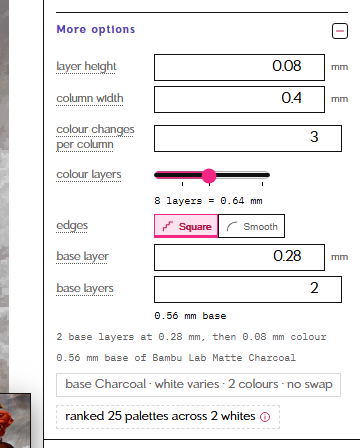
Layer height, column width and colour changes per column. First we have a set of three controls. Layer height is self explanatory. Column width is basically the resolution of your print. It defaults to 0.4 because that is the minimum resolution for a 0.4 mm nozzle. Lower numbers work, but you need to have your retraction settings dialed in, with dry filament.
Next is colour changes per column. This just means how many colours fit inside each colour column. 3 is a fine default. 4 gives slightly more colour in some images, but it's pretty minor. You can explore this a bit, but I recommend locking in one palette first (the lock button under Filaments does that in one click), since higher numbers can take a long time to compute.
Colour layers. Now we have a slider. Dreaded sliders. Don't worry, this one is a lot of fun. It's basically "how many colour and blending layers do we have to work with". From my testing, with my filaments, a 0.4 mm nozzle and a 0.08 mm layer height, 8 gave me great results on pretty much every image. I usually start at 8 and lower it until I don't like the look of the image, just to save time, but you could go in the opposite direction and add even more layers (and a smaller 0.2 mm nozzle) to get even more colours than me. (Pics or it didn't happen.) The slider goes up to 16, which is what High detail uses.
Edges. One important point to note is the square edges versus smooth edges setting. Square edges are the default: they look okay and compute very fast, especially with 8 colour layers. Smooth edges look better but can take a long time to compute (30 minutes plus in some instances) and give a larger model file, but they smooth out the columns into more natural shapes that are better for printing than harsh squares, while preserving the image. Note that you won't see the smooth edges in the preview: it always shows square columns, so don't worry if it looks the same.
Base layers. Now we come to the base layer settings. By default it is set to 2 layers of 0.28 mm, since I found in testing that this is the minimum you need to get a sturdy enough print, but you can change it as needed.
Filaments
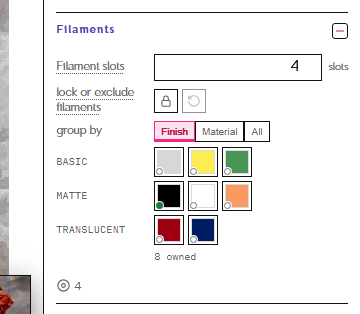
Filament slots. At the top you can see the number of filament slots you expect to have (on a Bambu Lab printer, that's the slots in your AMS). By default it is set to 4.
Lock or exclude filaments. Under that you can see your filaments. Here you can choose which filaments to include or exclude from any ranking: clicking one cycles it between available, locked in and excluded. Useful if you want a particular set of filaments, or want to make sure a roll isn't used. Hover a filament to see its name.
Two small buttons sit on that row. The lock locks in every spool of the palette you have selected, and the arrow clears every choice back to available.
Group by. Finish sorts your filaments into basic, matte, silk, translucent and so on, Material sorts them into PLA, PETG and the rest, and All shows one list.
Image
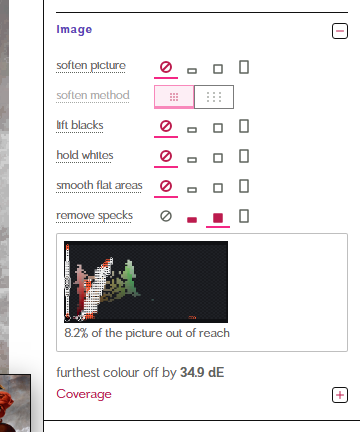
These make the plate simpler: fewer, bigger areas of colour. They change the preview and the plate the same way, so what you see is what prints. Each one is Off, Low, Mid or High.
Soften picture. Evens out texture and noise in the picture before the colours are chosen, like the paper texture in a scan of a painting. Outlines stay sharp. Method 1 averages close neighbours and is the default. Method 2 reaches much further, so big soft areas like a sky even out more.
Lift blacks and hold whites. Some pictures print their darkest parts as one flat black shape, or their brightest parts as one flat white shape. Lift blacks keeps some detail in the dark areas, and hold whites keeps some shading in the bright ones. The higher the level, the flatter the picture looks.
Smooth flat areas. Joins neighbouring areas of almost the same colour, so the plate has fewer, larger areas. Big colour steps stay.
Remove specks. Tiny spots of one colour take the colour around them, since dots a nozzle wide rarely print cleanly. It starts on, at Mid, which removes spots smaller than 4 columns.
Gamut coverage. Under that we have a little gamut coverage map, which isn't a control at all... I just think it's neat to see. Click it to see it bigger. Coverage under it shows how much of the plate each filament covers.
When you're happy with the results, press Build the plate! That's all there is to it!