
Installing Polychrome
Download Polychrome from the download page. It's free to download, and the seven-day trial starts only when you press Start free trial. Windows and macOS both warn you the first time you open an app they haven't seen before. Here's how to get past that. You only do it once.
Windows
1. Download the ZIP. Download the ZIP file and open your Downloads folder.
2. Unblock the ZIP. Right-click the ZIP, choose Properties, tick Unblock at the bottom, then press OK. Do this before extracting. Windows marks everything inside a downloaded ZIP, and some of what Polychrome needs will not load while the mark is there.
3. Extract the files. Right-click the ZIP again, choose Extract All, and pick where to put it. Your Desktop is fine.
4. Open Polychrome. Open the folder it made and double-click Polychrome.
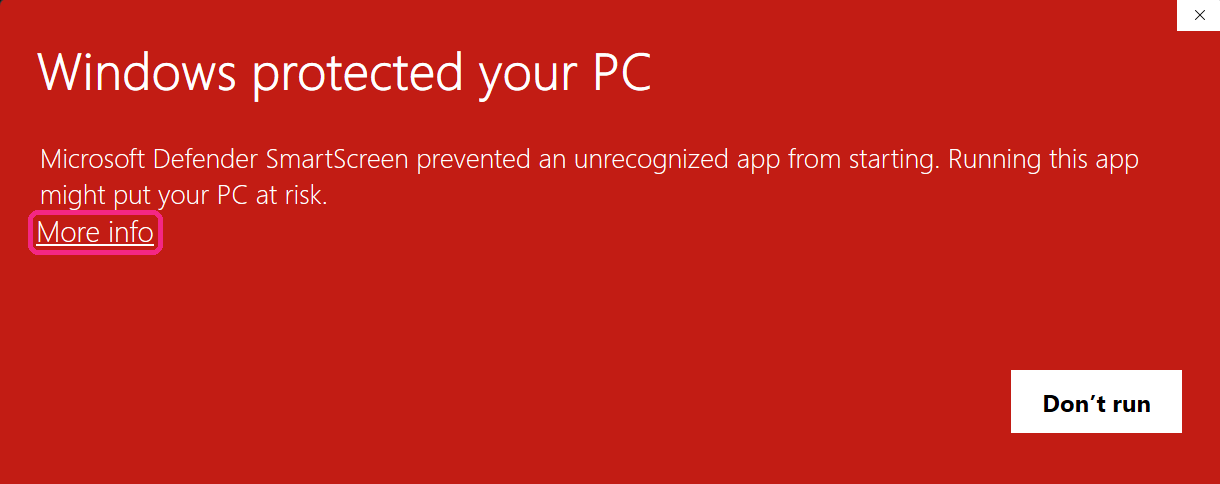
5. Choose More info. A red box appears: "Windows protected your PC". Click More info, which is small and easy to miss.
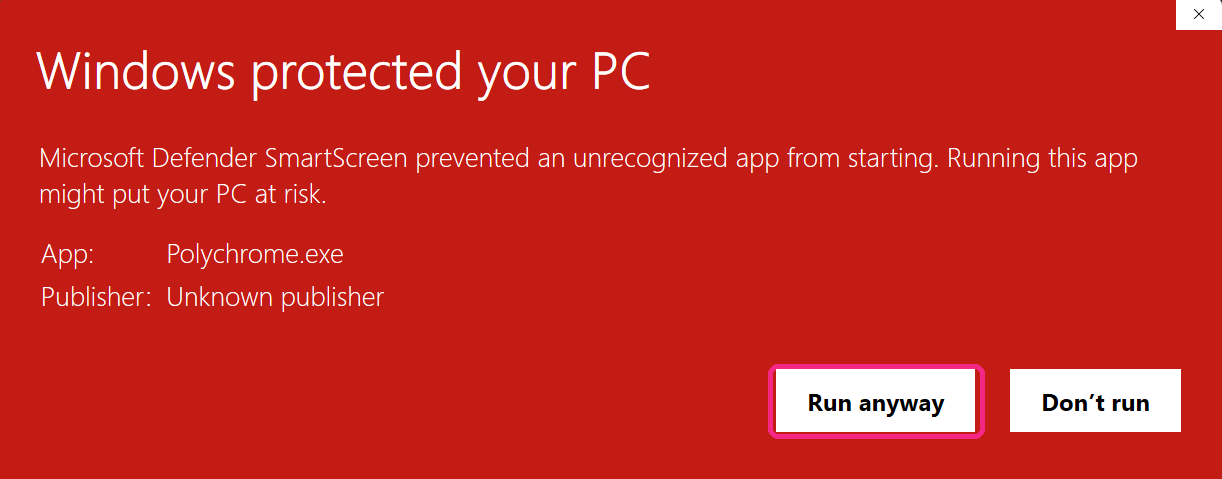
6. Choose Run anyway. Clicking More info expands the box and adds Run anyway. Click it to start the app. You only do this once. After that Windows remembers.
Keep the whole folder together. Polychrome runs from the files beside it, so moving Polychrome.exe out on its own will stop it working.
Mac
Polychrome isn't signed through Apple yet, so your Mac warns you a few times the first time you open it. Here is exactly what to press.
1. Move Polychrome to Applications. Download the file and double-click it. A window opens with Polychrome and your Applications folder. Drag Polychrome onto Applications. Then eject the Polychrome disk in Finder's sidebar. You can delete the download afterwards.
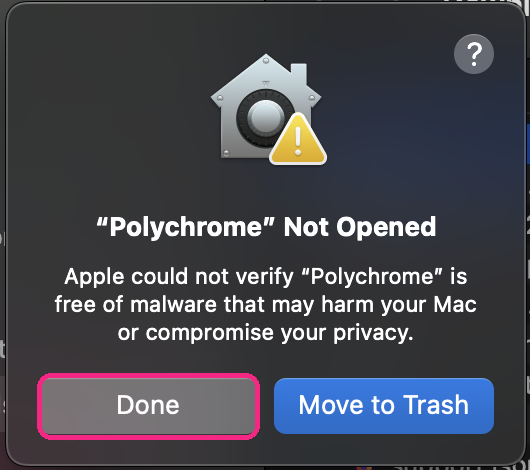
Open Polychrome. macOS says it can't open it and offers Done or Move to Trash. Press Done. Nothing is deleted, and the app stays where it is.
2. Open Privacy and Security. After you press Done, open System Settings, then Privacy and Security, and scroll to the bottom. The Open Anyway button only appears after you have tried to open Polychrome once. Polychrome is named there with an Open Anyway button beside it. That button is the one that lets you through.
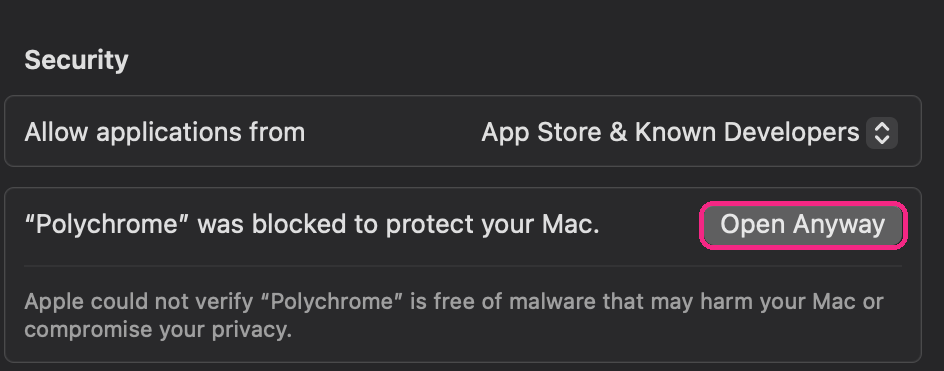
3. Press Open Anyway. macOS asks once more. Press Open Anyway, the grey button. The big blue one is Move to Trash.
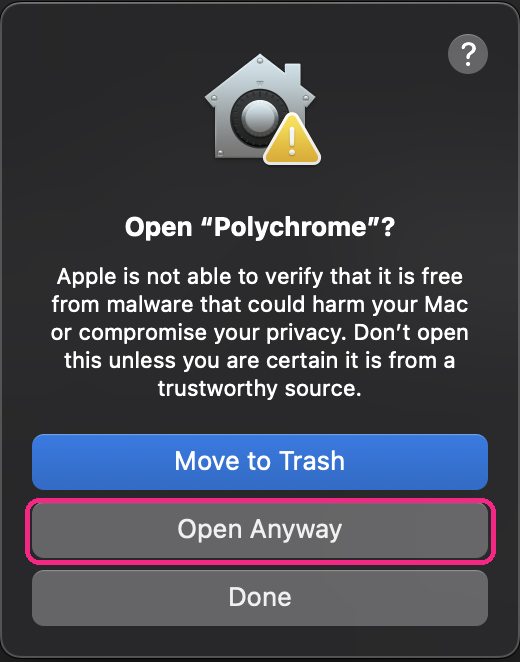
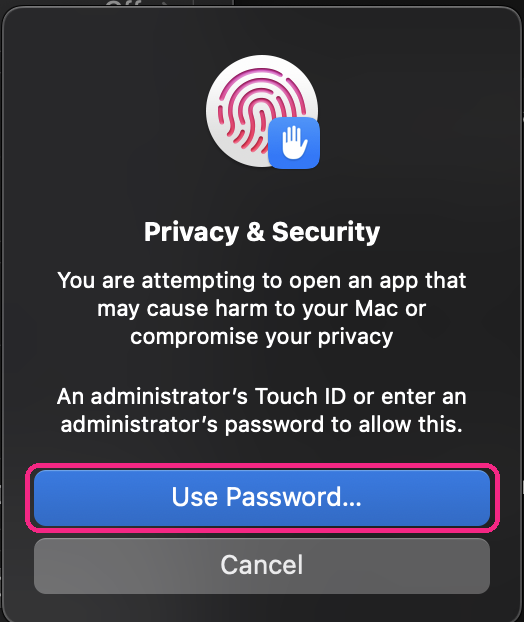
4. Confirm with your Mac password. macOS asks for Touch ID or the password you log in with. This is macOS asking, not Polychrome. Nothing you type here is sent anywhere, and it is the only password prompt in the whole process.
After that Polychrome opens, and it opens normally from then on. You only do this once per version.
Linux
There's no Linux version yet, and the free trial is Windows and Mac only.
Still stuck?
Write to [email protected] and tell me what you saw. A screenshot helps. Next: activating your licence, or start the free trial.