Skip to content

01 / Start with a picture

Import a picture, then set the size, crop and outline of your piece. Your own photos print too: a pet, a family picture, a holiday shot.

I use Napoleon Crossing the Alps all the way down this page. It is also the example plate in the app, so you can follow along before you buy.

Jacques-Louis David, Napoleon Crossing the Alps, Charlottenburg version, 1801. Public domain, via Wikimedia Commons. Cropped; predictions generated with Polychrome.

Cropped source painting of Napoleon in a red cloak on a rearing brown horse, by Jacques-Louis David

02 / Compare your filaments

Tell Polychrome which rolls you own. It ranks combinations for your picture and shows a prediction for each. Here are three for Napoleon.

Polychrome prediction of Napoleon with a red cloak and warm brown horse, using the Warm reds palette

Software prediction

Warm reds

The closest colour match of these three. Four rolls, no spool exchange.

Filaments in this palette

  • Bambu Lab Matte Ivory White (11100)
  • Bambu Lab Basic Yellow (10400)
  • Bambu Lab Matte Charcoal (11101)
  • Bambu Lab Translucent Red (13210)
Polychrome prediction of Napoleon with warmer amber shadows, using the Amber shadows palette

Software prediction

Amber shadows

Warmer, with orange in place of yellow. Four rolls, no spool exchange.

Filaments in this palette

  • Bambu Lab Matte Mandarin Orange (11300)
  • Bambu Lab Matte Ivory White (11100)
  • Bambu Lab Matte Charcoal (11101)
  • Bambu Lab Translucent Red (13210)
Polychrome prediction of Napoleon in golden and green tones, using the Golden tones palette without a red filament

Software prediction

Golden tones

Golden and green tones, without a red filament. Four rolls, no spool exchange. The green is not one of the measured rolls, so its colours start from an estimate.

Filaments in this palette

  • Bambu Lab Matte Mandarin Orange (11300)
  • Bambu Lab Matte Dark Green (11501)
  • Bambu Lab Matte Ivory White (11100)
  • Bambu Lab Matte Charcoal (11101)

03 / Check it layer by layer

The 3D view shows how the print should look, and you can take layers off the top to see what is underneath. Here the top three of eight are off. I use it to catch a plate that is not coming out right before I spend a roll on it.

Polychrome's 3D view of a relief plate tilted on its bed, with the top three of eight layers removed, beside a panel listing each filament's coverage

04 / Open it in your slicer

Export the plate and open it in your slicer, the program that prepares prints for your printer (Bambu Studio and Orca Slicer are free). The Bambu Studio project already knows which roll goes in each slot. For any other slicer, the print sheet lists the rolls, their order and any pause to swap one. Printing your plate walks through it.

Here is a five-roll Napoleon plate in Orca Slicer, with its 0.08 mm layers already set. It shows four filaments because the fifth goes into the same slot at the pause.

A Polychrome relief plate of Napoleon Crossing the Alps open in Orca Slicer, on the build plate, with four filaments assigned and a 0.08 mm layer height

05 / Print

Load the rolls the print sheet shows and start the job. If the plate uses five rolls in four slots, the printer pauses once so you can swap one, usually black out and white in.

Polychrome prints in relief by default, so the surface has a texture you can feel. Flat mode is there for pieces that need an even surface.

This is my framed Napoleon.

My Polychrome print of Napoleon Crossing the Alps in a black frame on my wall
  • Relief

    The default for a picture you can frame and hold. The height varies across the image with its colour layers.

  • Flat

    An optional mode that keeps the colour construction at full depth, for coasters and other flat pieces.

See the gallery

Rolls that are not measured yet

If you use the Bambu rolls that ship already measured, this step is optional. Any other roll starts from an estimate, and calibrating it takes about an hour, once. Print a simple card, match a couple of its squares by eye, then take a photo of it with your phone and Read with a photo reads the rest. You can also match every square by eye.

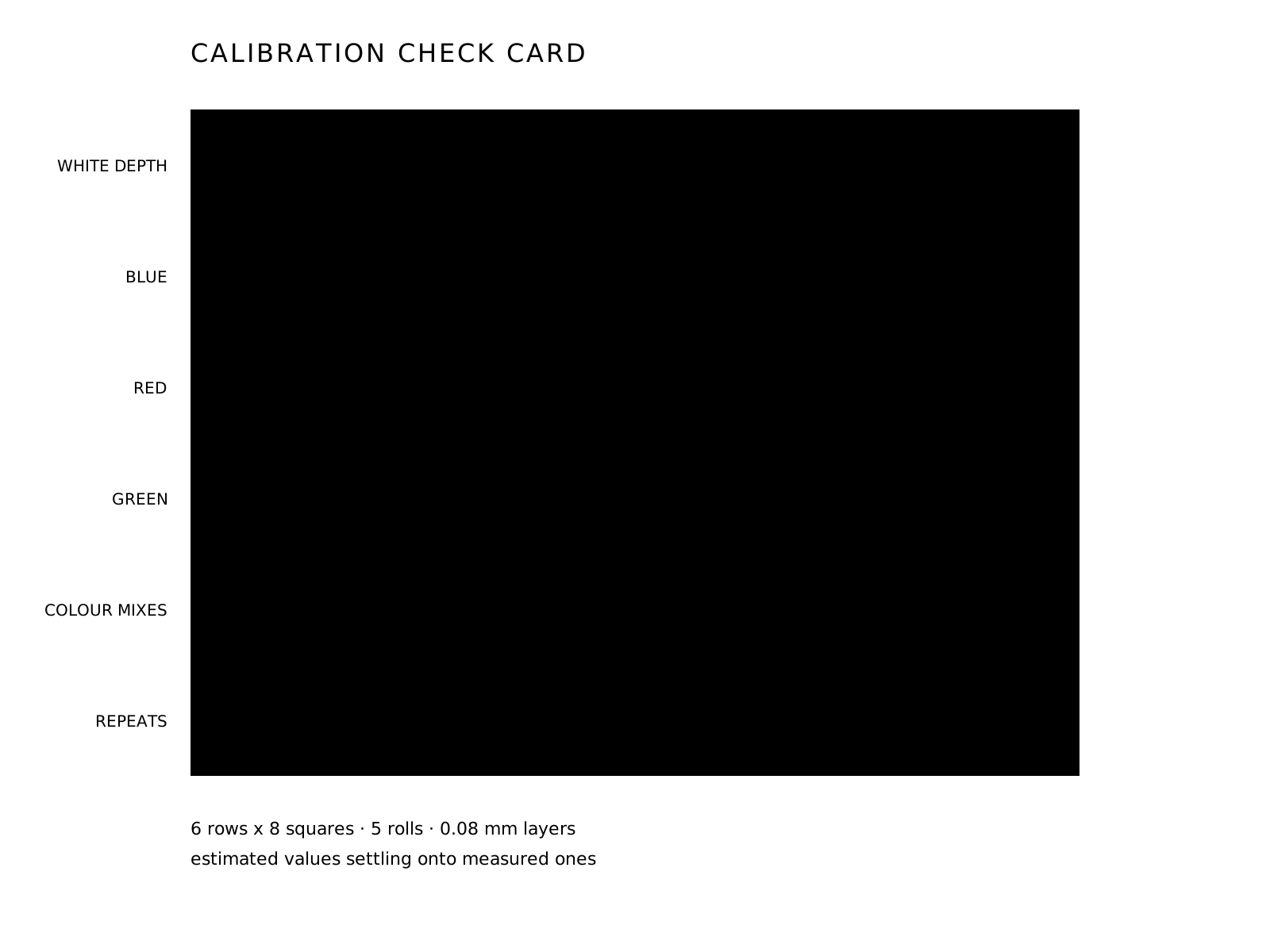
This five-roll card has six rows of eight squares. The rows test white depth, then each colour over the base and over white, then colour combinations and repeat patches. The number of rows depends on how many rolls the card tests.

A predicted five-roll calibration check card with six rows of eight squares: white depth, blue, red, green, colour combinations and repeat patches. The patches shift from estimated material values to measured ones.

Predicted appearance, not a photograph. Bambu Matte Charcoal, Bambu Matte Ivory White, Creality Basic Blue, Creality Basic Red and Bambu Basic Bambu Green at 0.08 mm layers.

  • Print

    Pick the filaments to calibrate and generate a calibration card for that set. The starting numbers are an estimate, and the card is how you correct them.

  • Compare

    Match at least two squares on the printed card by eye with the sliders. Then Read with a photo reads the rest.

  • Refine

    You do not need to get it right on the first try. Put it down and try again later. More readings improve accuracy without reprinting.

Questions about the process

What kind of image should I start with?

Most pictures work. What limits the result is mostly your filaments, and how many your printer can hold at once. For the most detail, have a few translucent filaments.

Add every filament you have lying around, and any you're thinking of buying. Polychrome ranks the best mixes for each picture, so you can see what a filament would do before you buy it.

What filaments are best for this?

Any filament works. The more translucent a filament is, the more it mixes with the colours under it, so translucent filaments give the most colours and detail. Basic filaments sit in the middle. Opaque ones, like matte, mix the least, which still makes them good for the darkest and lightest parts.

Do I need to choose between relief and flat mode?

Relief is the default. The colours are the same either way: relief adds a surface you can feel, and I prefer it for a piece in a frame. Flat mode prints completely solid, so it uses more filament and takes longer. Use flat for anything that must sit level, like a coaster, a bookmark or the back of a phone case.

How do five colours work with a four-slot AMS?

With switch out black on, your darkest roll prints the base. Once the base is done, the printer pauses, you pull black out and load white in the same slot, and you resume. That's the only time you touch the printer, and the print sheet tells you exactly when it happens.

Leave switch out black off and the plate prints with four rolls and no pause. The three Napoleon palettes on this page each use four rolls.

Do I have to calibrate again for every image?

No. Calibration is saved with your filaments and reused for every picture. Calibrate the rolls you use most, and do it again if you switch to a new batch or brand, or if a print stops matching its preview.

Pick your licence

Personal, Commercial Prints and Creator, and what each one covers. Try it free for seven days first.