Calibrating your filaments
The short version: print a calibration card, match a few of its squares by eye, and let a photo of the card read the rest. One card calibrates up to four filaments. The details are below.
To see the steps in the app, press How to calibrate? at the top of the Calibrate page, or open it from the Help menu. It walks you through picking your spools, building and printing the card, and reading it.
Now that you've added a few of your filaments on the Filaments page and you've picked an image to print, next we're going to dial in your filaments. (You can say YOLO and try to print without doing this. You'll probably get colour blending, but the result will not look like the preview.)
After you import your image, Polychrome will automatically rank all of your filaments and pick out the best results.
Each palette card has a rank and a number, like "#1 close 2.9". The number is how far the preview is from your picture, so lower is better. Polychrome calls anything under 8 a close match, 8 to 12 a fair match, and anything above that a rough match. Each card also says how many colours its plate would have.
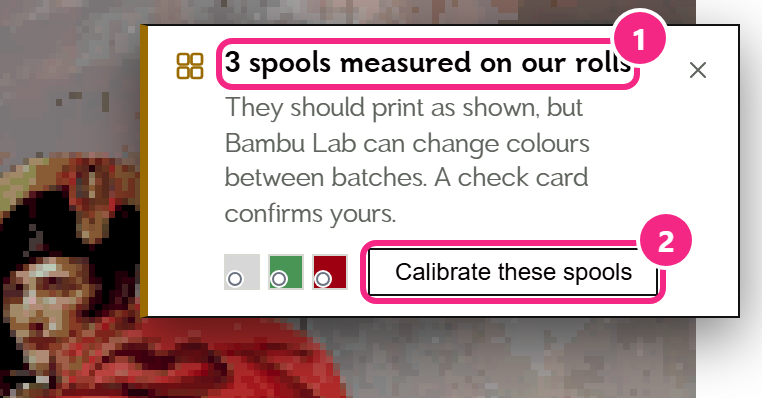
However, the preview you are seeing is only as good as what Polychrome knows about your filaments. The starter filaments come with my own readings, so they are a decent start, but your spools and your printer are not mine. For any filament you added yourself, the preview is just a guess. It's probably wrong. Until you've calibrated the spools in a palette yourself, a notice in the top right corner of the preview says how many of them are not measured yet, or, for rolls I measured, that they were measured on our rolls (1). That is there to warn you that the preview might not match reality.
So let's fix that.
Build the card
Press Calibrate these spools on that notice (2). It will take you to the Calibrate page with those spools already selected. (The little squares icon on each palette card does the same for all of that palette's filaments.)
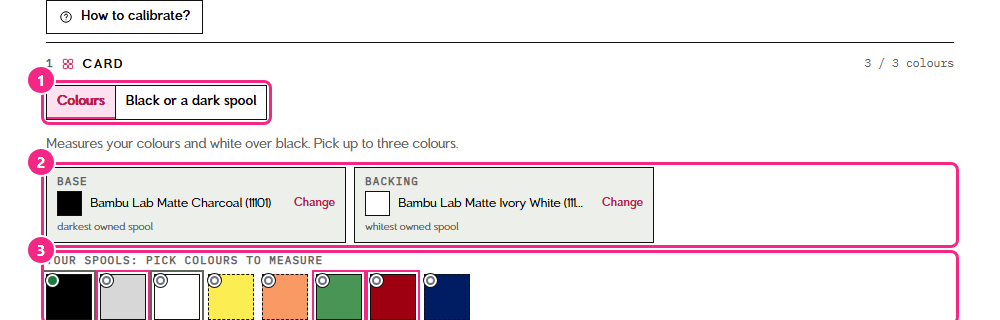
At the top of the Calibrate page you choose what the card is for (1). Leave it on Colours to measure your colours over a black base, with white as the backing (2) and the colours you pick from your spools (3). Pick Black or a dark spool when you want to measure how thin layers of black or another dark spool look over white; if a spool lets no light through at all, set it opaque on the Filaments page instead (more on that below).
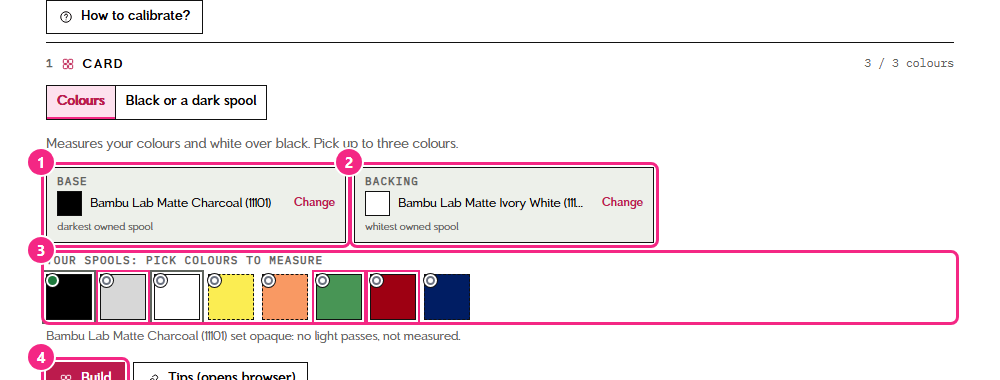
The card has three jobs to fill, and Polychrome fills them for you. Your darkest filament is the base (1), your whitest is the backing (2), and up to three more are the colours to measure (3). If it picked the wrong one, press Change next to it. You can pick up to five filaments in total. Click a filament under your spools to add it or take it off.
Next, press Build (4) to generate the calibration card and reveal the download buttons. There is only the one button: if you change your filaments later, press it again and you get a new card.
Download it and print it. It's a small print: about an hour for 4 or 5 filaments, and the card in these screenshots is 96 x 32 mm and uses about 3.4 g of filament. You'll want 0.28 mm base layers and 0.08 mm layers after that. The Project file (2) is for Bambu Studio, and it is the one I recommend: the layer heights, the slots and the speeds are already set. If you use the plain 3MF (1) in another slicer, open printing the plain 3MF just above the buttons for the settings.
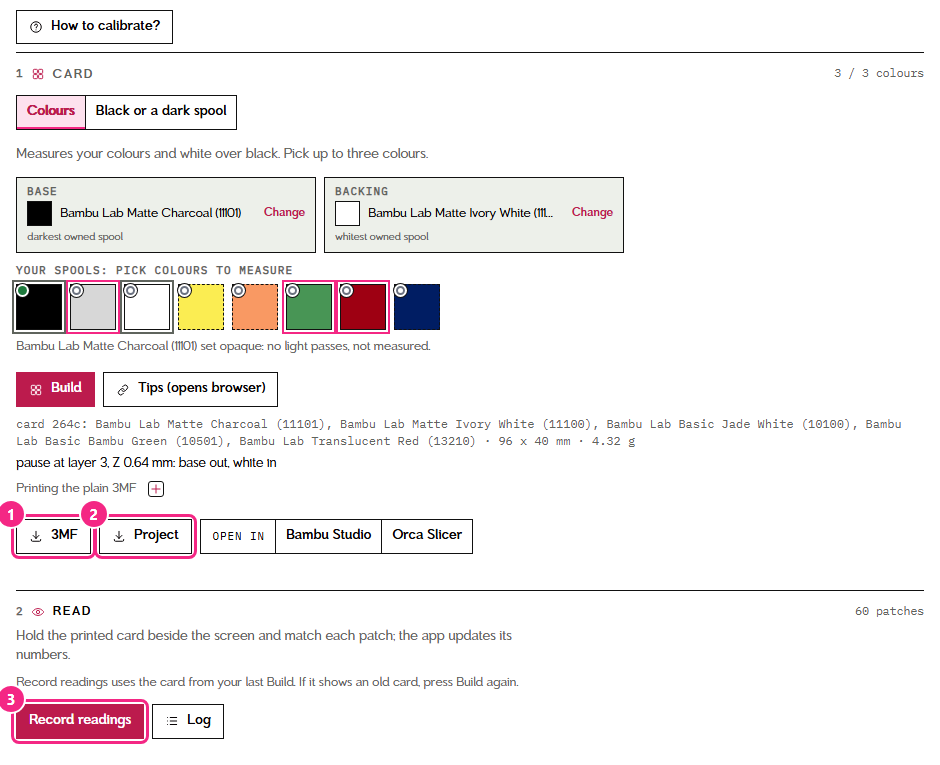
(Note: if the app closes and you lose the selected filaments, do not worry. If you pick the same colours and build again, you will get the exact same card.)
Match the card
Print that out and then come back to the Calibrate page, and press Record readings (3). It uses the card from your last build, so if it shows an old card, press Build again.
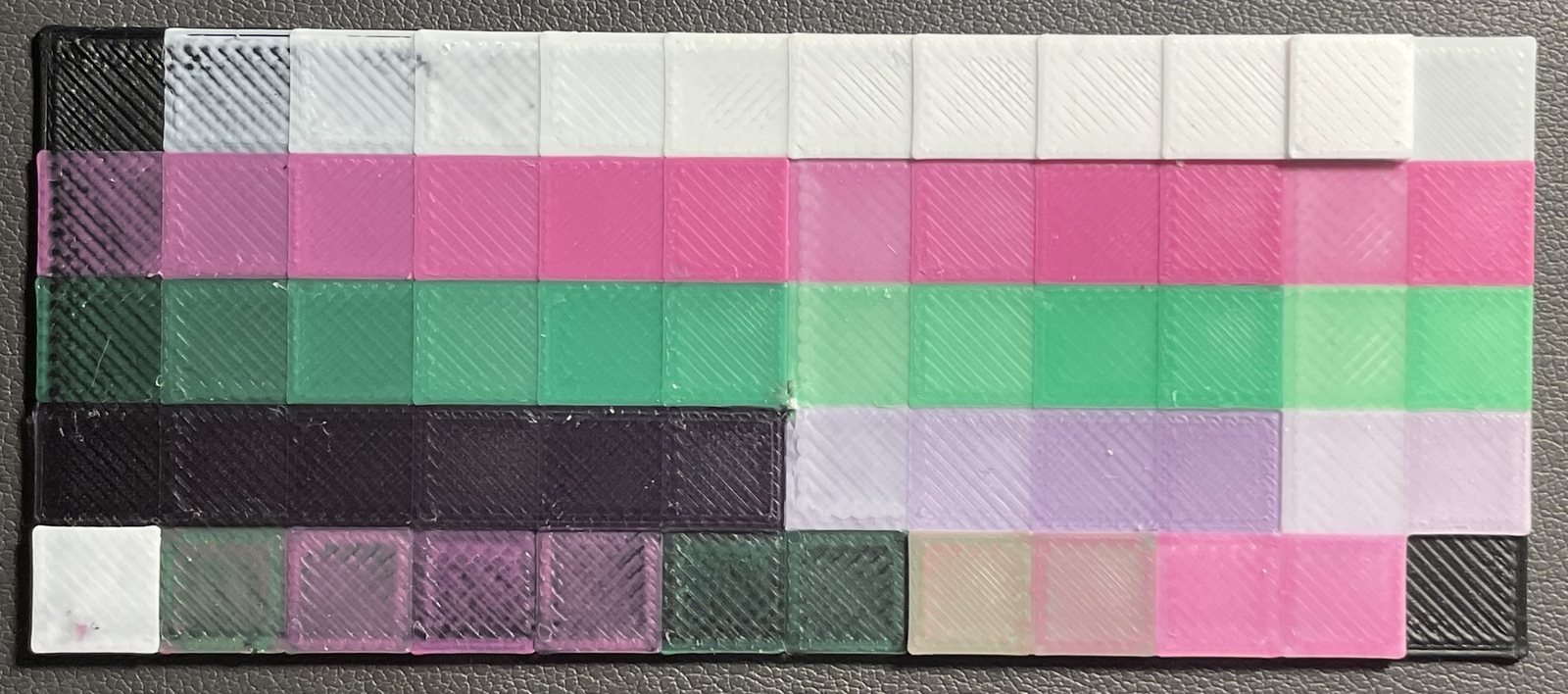
Here's what a printed card looks like. This one uses different filaments from the screenshots, so yours will have its own colours.
On this screen, you'll play with the sliders to get the result on screen as close as you can to what you are holding in your hands.
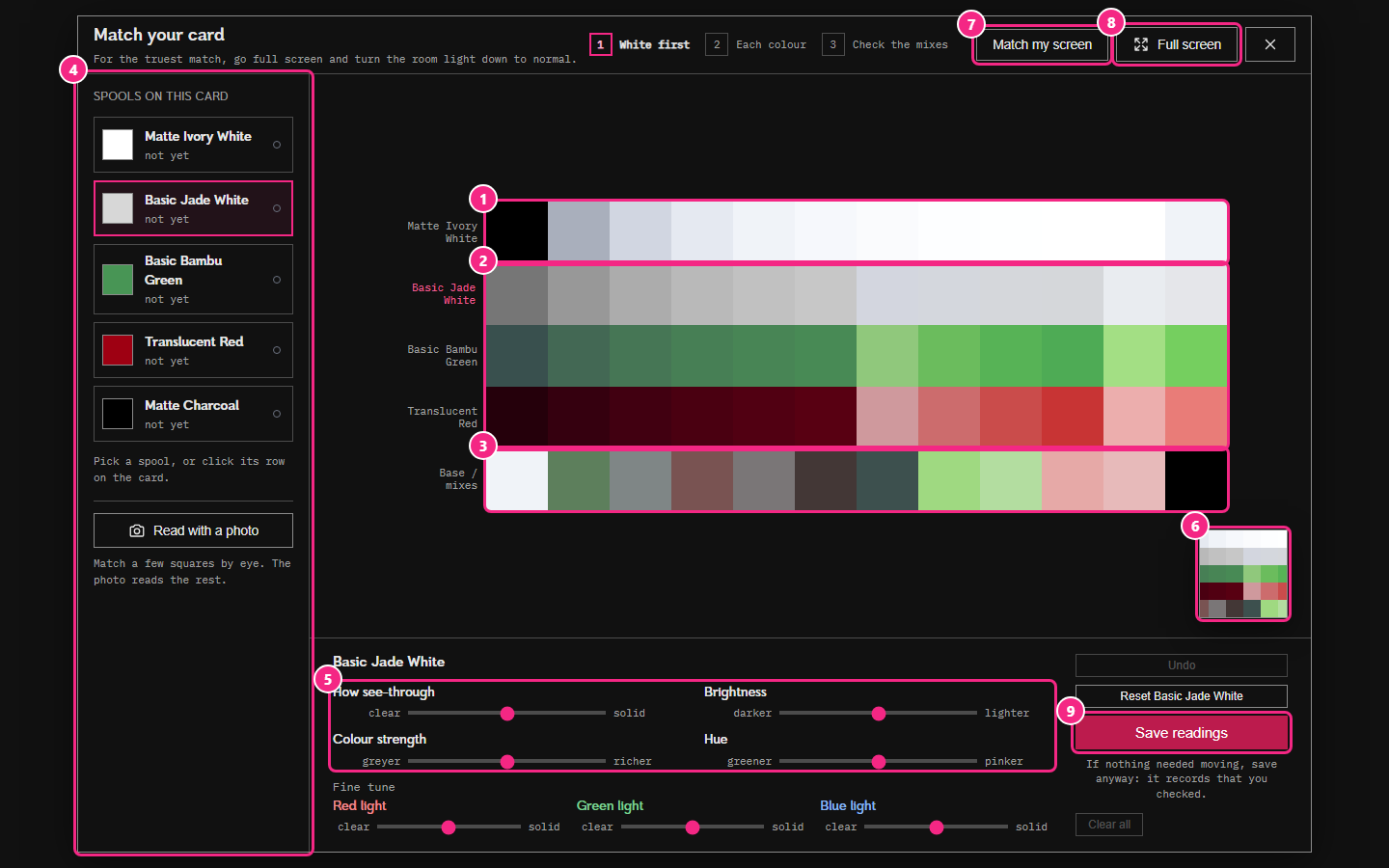
Under the spool list there's also Read with a photo, a quicker way that I cover further down. It uses the same sliders, so here's how to do it all by eye first.
The steps along the top of the window are the order I'd go in: white first, then each colour, then check the mixes.
First, I would make sure the white is correct, since it is underneath a lot of the other samples. Pick white (or the lightest filament in your palette) in the list on the left (4), and move the sliders (5) until the top row (1) on screen more or less matches what you have in your hands. You can also click a row on the card to pick its filament. Clicking a single square shows a few nearby colours that its row's spool can make: pick the one that looks like your card, and that spool's sliders move to match.
There are four sliders, and each one says which way it goes: How see-through (clear to solid), Brightness, Colour strength and Hue. The hue slider names the colours on either side of the filament you picked, so for yellow it goes from greener to oranger. It turns the colour over black and over white together. If you need to go further, Fine tune has separate controls for red, green and blue light.
Then go through the colours and adjust the colour rows (2), one for each colour, until they look correct. As you do that, keep an eye on the bottom row of squares (3). They are there to guide you in the right direction. Each filament in the list says not yet, adjusted or matched, so you can see where you are.
Then comes the bottom row itself, which is probably the most useful. Some of these squares might be the clearest sign that something is a bit off. If they match perfectly, I'd say your job is done!
If you lose track of what you changed, press and hold the small picture in the corner (6) to see the card as it was when you opened it, and let go to see your changes again.
If your screen shows colours differently from the real world (most do, a little), Match my screen (7) lets you adjust how the screen shows the card, by matching two squares to the black and the lightest white on your card. This only changes the display. Nothing is saved to your filaments.
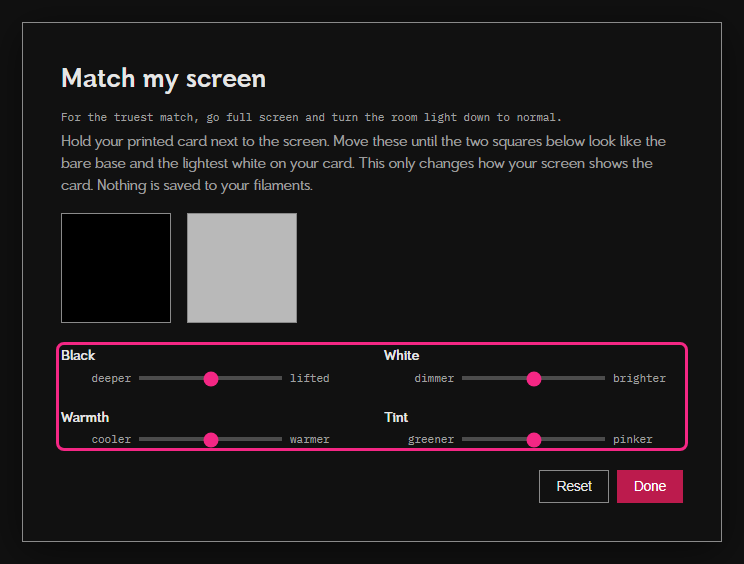
For the truest match, press Full screen (8) and turn the room light down to normal.
Press Save readings (9), return to the Studio page and remake your image if needed. If you didn't need to move anything, press it anyway: it records that you checked.
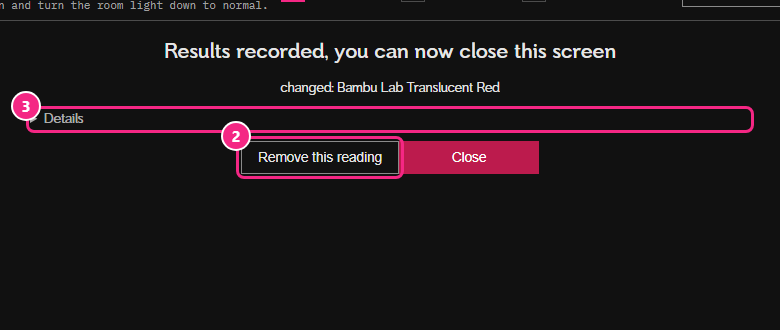
After that you get a short summary of which filaments changed. The numbers are under Details if you want them. If you recorded by accident, or you were just fiddling, Remove this reading takes it back out.
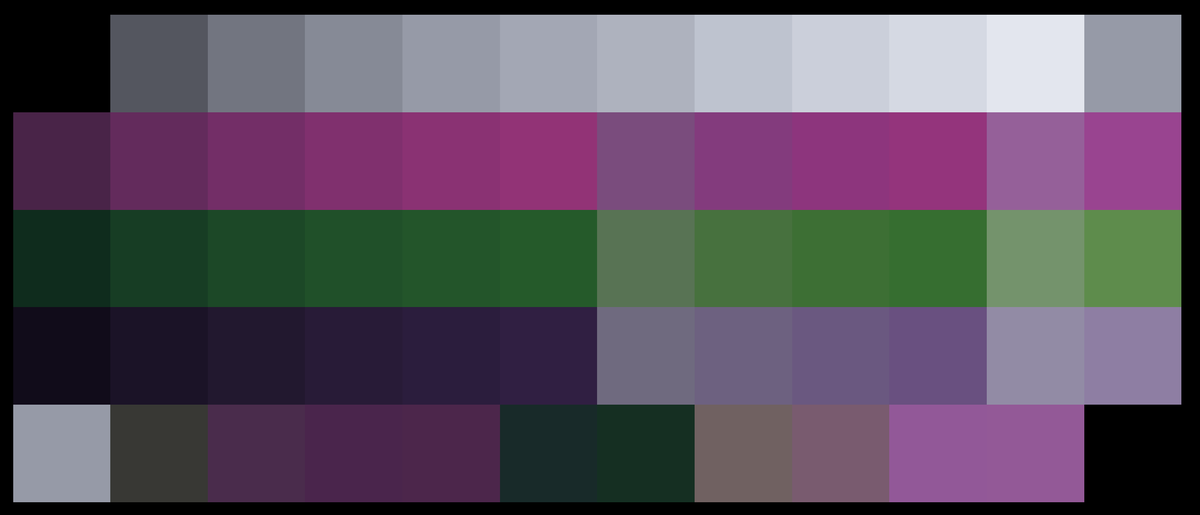
An example: dialing in my card
A quick caveat first: the colours here, and my comments about them, might look wrong to you. That's down to the differences between our monitors and our lighting. This is mostly here to show how I was thinking while I dialed my card in.
Also, I'm not an artist and I have no particular eye for colour. So if I can do it, you can probably do it too.
My card is the one in the photo above: white, magenta, green and a translucent purple, over a black base. That's a different palette from the one in the screenshots, but the process is the same.
- White needed to come up. That mattered first, since it sits under so many of the other patches.
- Magenta looked pretty close. It only needed a small adjustment to its opacity.
- Green was a little off in colour, so I adjusted its hue and strength. It was also a little too opaque, so I brought its opacity down a bit.
- Translucent purple was the most off. On the real card it looks totally black over the black layers, and on screen it was too dark over the light layers. It was too opaque, so I brought its opacity down.
After that, all the squares looked close enough to what I had in my hands, so I pressed record. When I came back to it later with fresh eyes, I pushed the sliders a bit further, and that's the "after" below. Coming back for a second pass is completely normal. Here's my screen before and after:

Read the card with a photo
Matching every square by eye takes a while, so there's a quicker way: you match a few squares by eye, and a photo of your card reads the rest. It lives in the same window. Press Record readings, then Read with a photo under the list of spools.
Why not just the photo? I tested calibration with a regular phone camera, and on its own the results were too inconsistent to be reliable. There's a lot of camera trickery happening in a modern smartphone, and the light in your room changes things too. The few squares you match by eye tell Polychrome how your camera and your light shifted the colours, and it corrects the rest of the photo with that.
Take a good photo
- Even light. Daylight from a window is best. Keep the card out of direct sun and away from a lamp that makes a bright spot.
- No glare. If any square shines, tilt the card or move until it doesn't.
- The whole card in the frame. Lay it flat on a plain background and let it fill most of the picture.
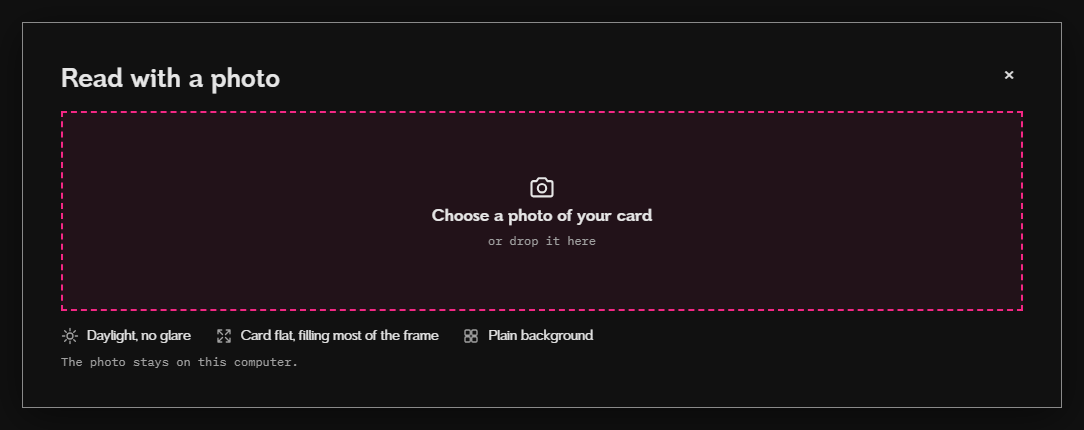
Choose the photo, or drop it on the window. The photo stays on your computer. On a Mac you can use an iPhone photo (HEIC) as it is. On Windows, use a JPEG or PNG: on an iPhone, Settings > Camera > Formats > Most Compatible takes JPEGs, or you can export or AirDrop the photo as a JPEG.
If the whitest squares came out washed out, or the black corner came out pure black, Polychrome asks for another photo. Take it again out of direct light, or with more light.
Check where the card is
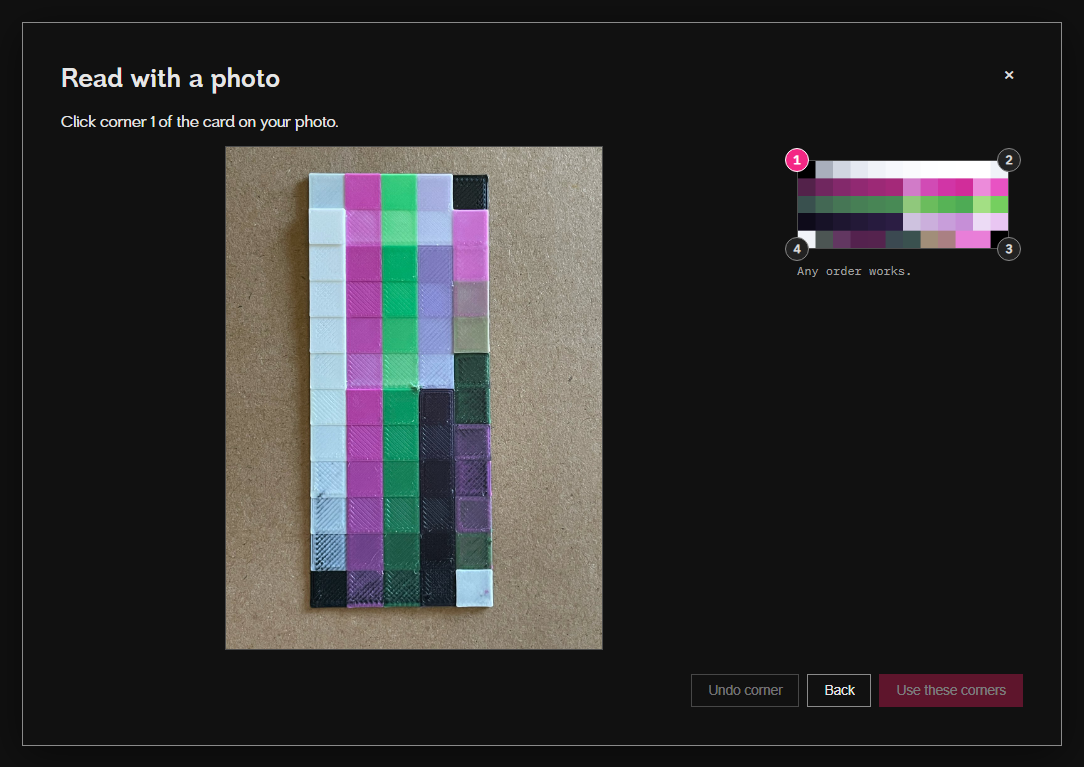
Polychrome finds the card in your photo by itself. It shows your photo, straightened, next to the card it expects, with a pink box on each square. Each pink box should sit inside one square. The colours don't need to match here. If it looks right, press Looks right.
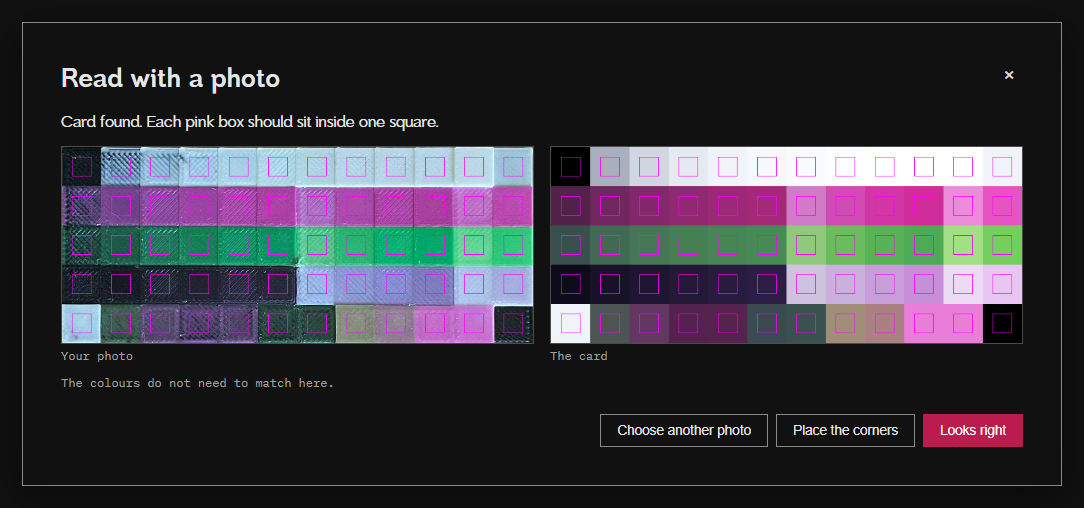
If the boxes are off, or it couldn't find the card, press Place the corners and click the card's four corners on your photo. Any order works.
Match a few squares
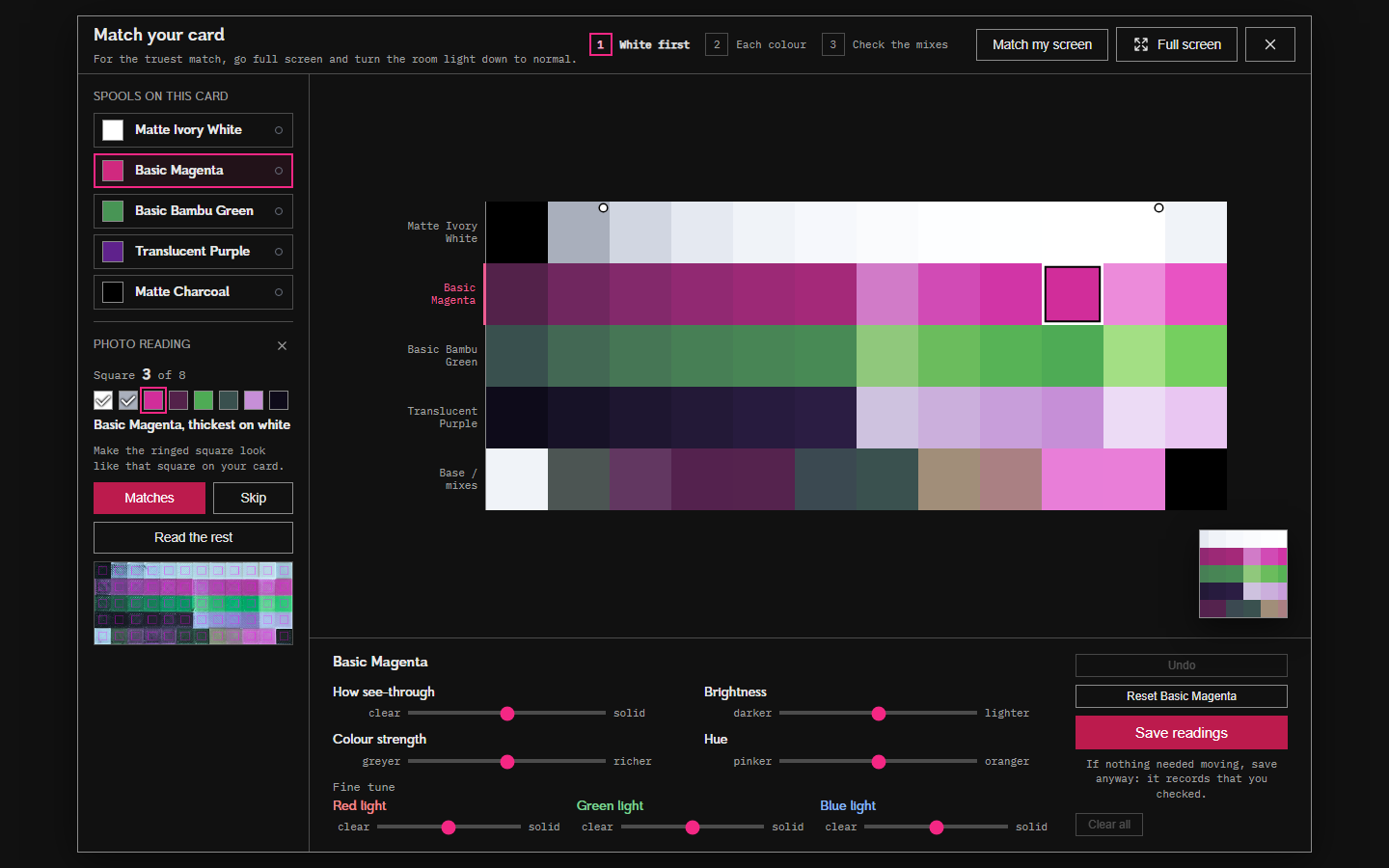
Now it walks you through a few squares, about two per spool: usually the thickest square over white and the thinnest over black. The square to match has a ring around it, and its spool is already picked, so the sliders are the ones you need. Move them until the ringed square looks like that square on your card, then press Matches. If one is too hard to judge, press Skip. The row of dots shows where you are, and clicking a dot takes you back to that square.
Read the rest
Once you've matched at least two squares, Read the rest reads every other square from the photo and moves the sliders for you. Check the bottom row like before, fine tune anything that looks off, then press Save readings. If you want to redo some matches, Change matches takes you back.
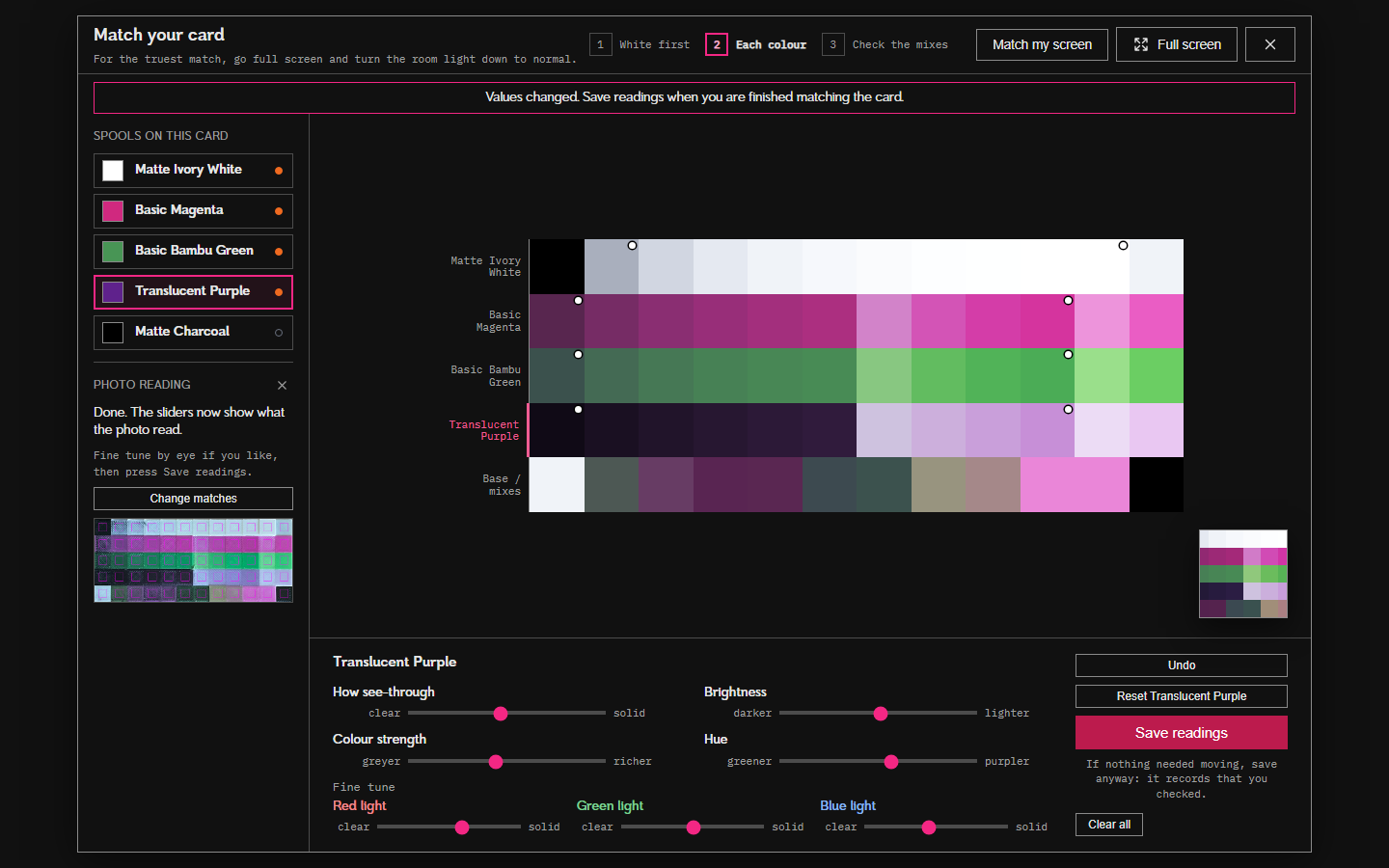
You can close the window part way through. When you come back to the same card, it picks up where you left off. The x next to Photo reading stops and forgets the photo.
Matching everything by eye still works exactly as before, so use whichever you like.
Back in the Studio
When you return to the Studio, the palette you just calibrated may have drifted, as it may no longer be the top one. It should still be in the top few palettes, so you can find it and reselect it.
If you cannot find it, open Filaments on the right side. Under lock or exclude filaments you can lock in the filaments you just dialed in: clicking a filament there cycles it between available, locked in and excluded.
Now your preview is accurate! Well... as accurate as your eyes are. If you are still not sure you did it right, I recommend a small test print (10 mm x 10 mm, say). If that looks like it has the right colours, you're really safe to start a long print. Personally, I find the calibration works well enough for me, so I haven't resorted to this yet, aside from development work.
Match a finished print
Once you have printed a plate, the print itself can be a calibration card too, and a much bigger one. Open the plate on the Plates page and press Match this print.
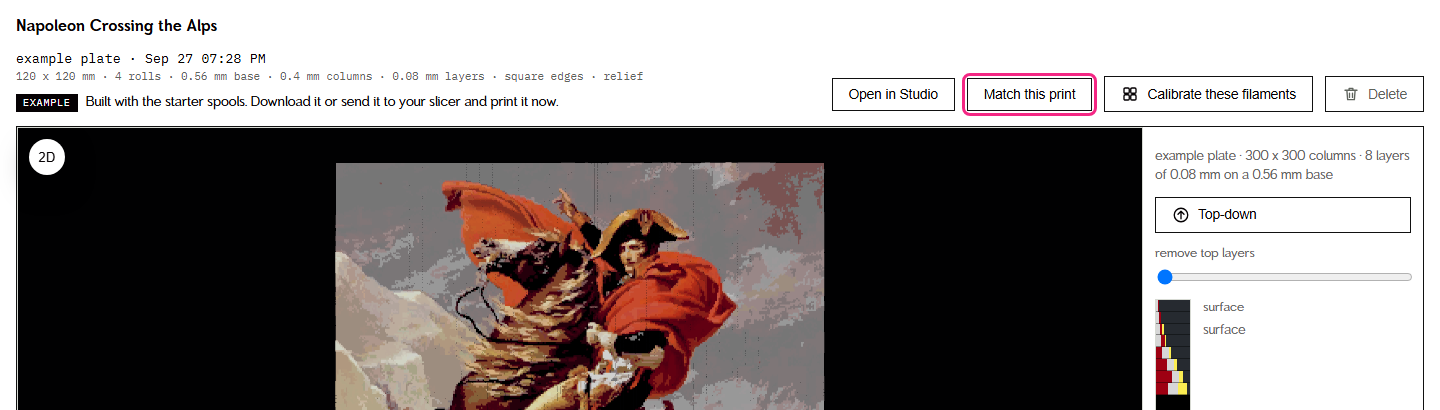
This opens the same window you used for the card, but with your plate in the middle (1). Hold your print next to the screen, pick a filament in the list (2), and move the sliders (3) until the picture on screen looks like the print in your hands. The picture updates as you move them. Press and hold the small picture in the corner (4) to see the plate as it was predicted when you built it, and Save readings (5) saves what you changed. Full screen (6) works here too.
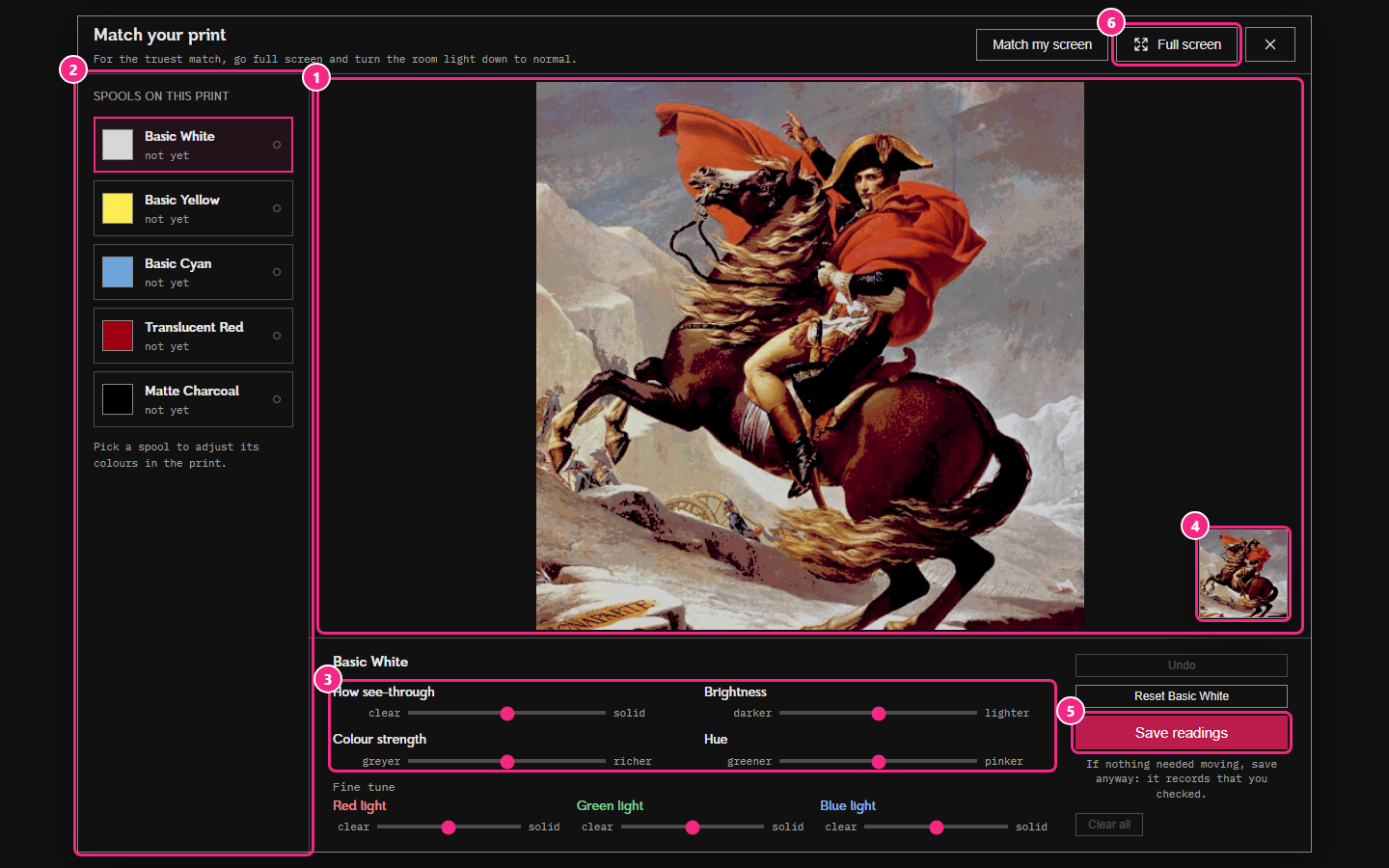
A reading from a print works just like a reading from a card: it combines with your other readings, and the next time the Studio ranks a picture it uses the new numbers. It shows up in the Calibrate page's log as "from your print", with the plate's name, and you can delete it there if you change your mind.

If a plate was built with smooth edges, the window shows it with square edges instead. The colours are exactly the same, so it works just as well for matching.
Filaments that let no light through
One note: I noticed that black filaments (well, at least my black filaments) are COMPLETELY opaque. As in, no light passes through even a 0.08 mm layer. If this is the case with one of your filaments, you can mark it as opaque on the Filaments page, using the little square beside its TD value (1). The button at the end of the row (2) copies all of that spool's data.

What to do if readings disagree
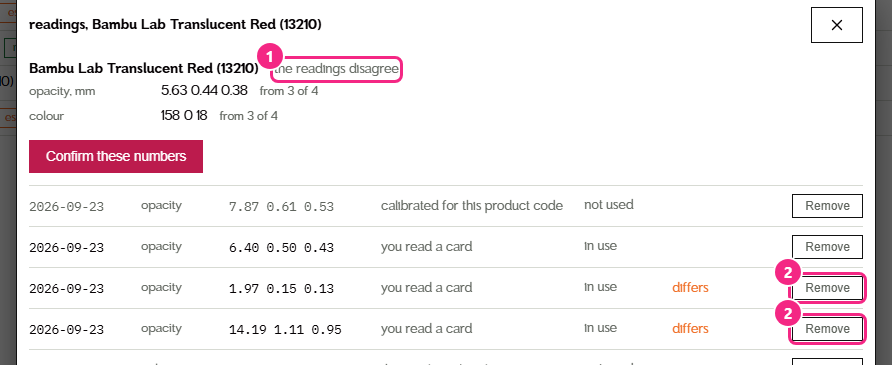
If you see "differs from an earlier reading" under details after you record, or in the readings column on the Filaments page, that just means that whatever you measured is really off from what was there before, and we don't want to risk taking a simple average.
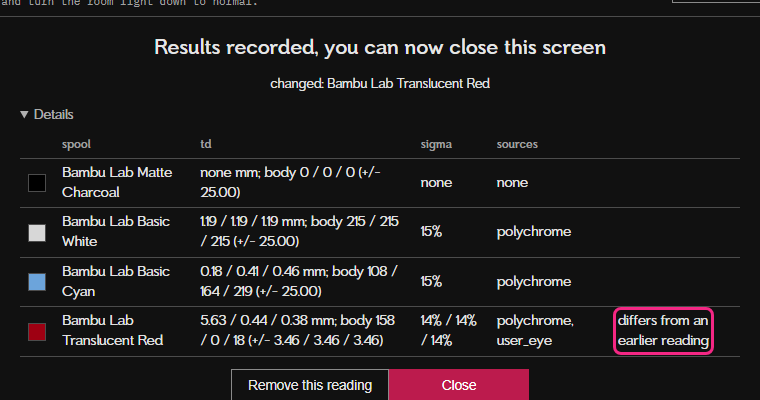
You can fix this by going to the Filaments page and clicking the button in the readings column.
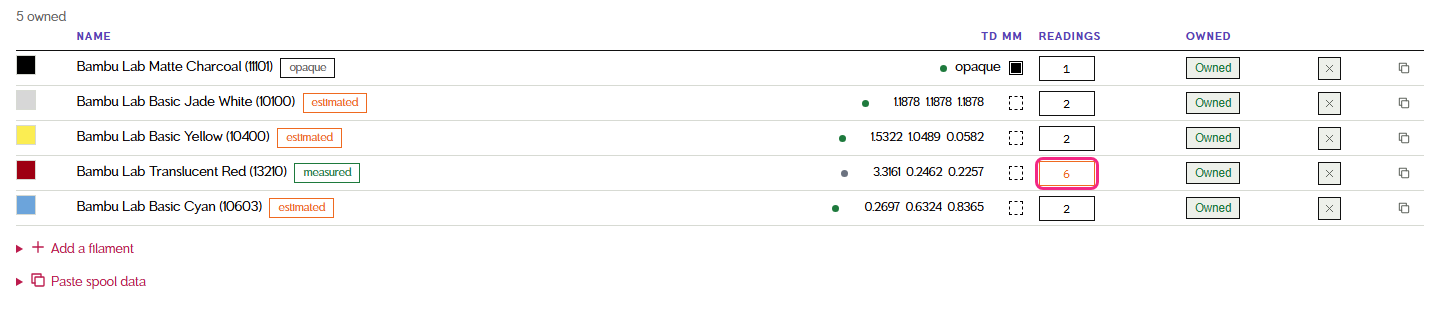
This will open up a window that lets you look at all of the calibration readings you have made for that filament, marked "the readings disagree" (1). Here is where you can decide what is right. Did you just calibrate and think your most recent reading was bang on? Then remove the old one (2). Did you fiddle with the sliders and save by accident? Remove the new one.